Color Accuracy in Product Photography: Getting It Right to Reduce Returns
The Color Problem in E-Commerce
Color-related returns are one of the most frustrating problems in online retail. A customer orders a navy blue sweater and receives something that looks more like black. They wanted blush pink but got what looks like peach. The product is fine — the photography just didn't represent the color accurately.
Studies show that color mismatches account for approximately 22 percent of all e-commerce returns. For a store doing a million dollars in annual revenue, that's potentially 220,000 dollars in avoidable returns — not counting the customer disappointment and lost loyalty that come with each one.
Getting color right isn't just about photography technique. It's about understanding the entire chain from camera to screen and managing accuracy at every step.
Why Colors Look Wrong
Color inaccuracy creeps in from multiple sources, and they compound. Understanding these sources is the first step to fixing them.
White balance is the most common culprit. Every light source has a color temperature — warm tungsten bulbs add an orange tint, cool fluorescent lights add green, and even "white" LED panels vary significantly. When the camera's white balance doesn't match the actual light temperature, every color in the image shifts.
Background color contamination is subtle but significant. A product photographed on a warm wooden table picks up reflected brown tones. A red wall behind the photographer bounces red light onto the product. Even a photographer wearing a bright shirt can cast color onto nearby surfaces.
Post-processing introduces its own color shifts. Automatic adjustments in photo editing software can shift colors in unexpected ways, especially when applied to product images where accuracy matters more than aesthetics.
Finally, screen variation between devices means the same image looks different on every phone, laptop, and monitor your customers use. This is partially beyond your control, but starting with accurate colors gives you the best chance of looking right everywhere.
Setting Up for Color Accuracy
The foundation of accurate color starts before you press the shutter.
Use daylight-balanced lighting at 5000K to 5500K. This produces the most neutral, accurate color rendition and matches industry standards for color evaluation. Avoid mixing light sources — every light in your setup should be the same color temperature.
Photograph against a neutral background. White and grey backgrounds don't reflect color onto your product and make it easy to verify white balance in post-processing. If you use colored backgrounds for brand purposes, photograph each product on neutral first, establish accurate color, then create the styled version.
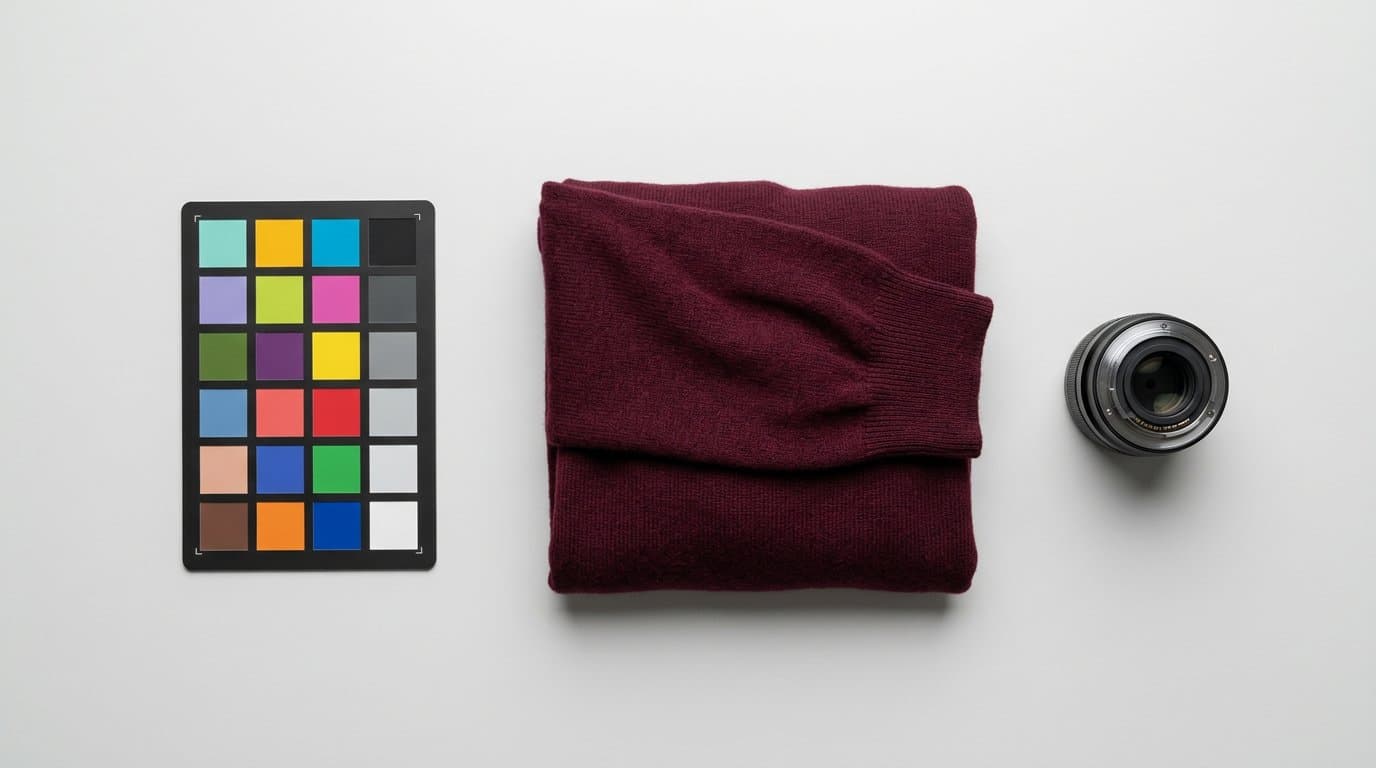
Invest in a grey card or color checker card. These reference tools contain precisely calibrated color patches that let you set perfect white balance in camera or correct it precisely in editing. Photograph the card under your lighting at the start of each session — it takes ten seconds and can save hours of correction later.
Camera Settings for Accurate Color
Shoot in RAW format whenever possible. RAW files preserve all the color data your camera captures, giving you full control over white balance and color correction in post. JPEG files lock in color choices at the time of capture, limiting what you can fix later.
Set a custom white balance rather than relying on auto white balance. Auto mode makes its best guess, but it can be thrown off by dominant product colors, background colors, or mixed lighting. A custom white balance set from a grey card gives you consistent, accurate results.
Avoid using camera picture styles or filters that alter color. Modes labeled "vivid," "warm," or "dramatic" are designed for artistic photography, not product accuracy. Use the "neutral" or "faithful" picture profile.
Post-Processing for Color Fidelity
Color correction in post-production is where accuracy is finalized. Start by setting the correct white balance using your grey card shot as reference. In any professional editing tool, you can use the white balance eyedropper on the grey card to instantly correct any remaining color cast.
Adjust individual color channels only when necessary, and only for colors that are visually wrong. Global saturation increases might make one color look better while making another look worse. Targeted adjustments are safer.
Compare your edited image against the physical product. View the image on a calibrated monitor alongside the actual product under daylight-balanced light. This direct comparison catches subtle shifts that statistical corrections miss.
Screen Calibration and Consistency
Your monitor's accuracy determines whether the colors you see during editing are the colors your customers will see. An uncalibrated monitor might display colors that look perfect to you but appear completely different on everyone else's screen.
Invest in a basic monitor calibration tool. Devices from brands like Datacolor or X-Rite cost around 100 to 200 dollars and take five minutes to run. They measure your monitor's actual color output and create a correction profile that ensures accurate display.
If monitor calibration isn't practical, at minimum ensure your editing software's color space is set to sRGB. This is the standard color space for web content, and editing in sRGB ensures the most consistent appearance across consumer displays.
Handling Difficult Colors
Some colors are notoriously hard to photograph accurately. Certain shades of red tend to oversaturate and lose texture detail. Deep blues and purples can shift unpredictably between devices. Neon and highly saturated colors push the limits of both cameras and screens.
For these difficult colors, consider including a color swatch or color reference in your product listing. A small note mentioning that the product is "true navy, darker than shown on some screens" sets realistic expectations and reduces color-related returns.
Photographing problematic colors under slightly cooler or warmer light can sometimes improve accuracy. Red products, for instance, often render more accurately under slightly cool light that prevents the reds from overwhelming the sensor.
AI and Color Consistency at Scale
When processing hundreds of product images through AI tools, color consistency across the entire catalog matters. AI processing should enhance clarity and context without shifting the actual product colors.
Modelize maintains color fidelity during image generation, ensuring that the product colors in your AI-generated images match your source photography. When you generate lifestyle scenes or model photography, the product's original colors are preserved accurately.
This consistency is critical for brands with strict color standards. If your brand blue is Pantone 2945C, it should appear identically in every product image across your entire catalog — regardless of whether the image was shot in a studio or generated with AI.
The Business Case for Color Accuracy
Accurate color representation reduces returns by setting proper expectations. It builds customer trust by delivering products that look exactly like they do online. And it reduces customer service load by eliminating color-related inquiries and complaints.
For Shopify merchants processing their own returns and customer service, the time and money saved by getting color right upfront is substantial. Each avoided return saves shipping costs, restocking time, and the risk of losing a customer permanently.
Practical Color Workflow
Here's a streamlined workflow for color-accurate product photography. Set up daylight-balanced lighting and a neutral background. Photograph a grey card for reference. Shoot your products in RAW at a custom white balance. In post-production, correct white balance using the grey card reference. Compare against the physical product on a calibrated display. Export in sRGB color space for web use.
This workflow adds minimal time to your process but makes a measurable difference in the accuracy of your final images — and a measurable difference in your return rates.
Generate Stunning Product Photos with AI
Modelize is a Shopify app that creates professional product images in seconds - AI models, backgrounds, and more. No photoshoot needed.